

Video annotation tool
with AI tracking.
AI tracking carries each object through the footage, and annotators fix only the frames where it slips. Several cameras of one scene play in sync, GPS routes and speed charts follow the video, and 4K plays smoothly.
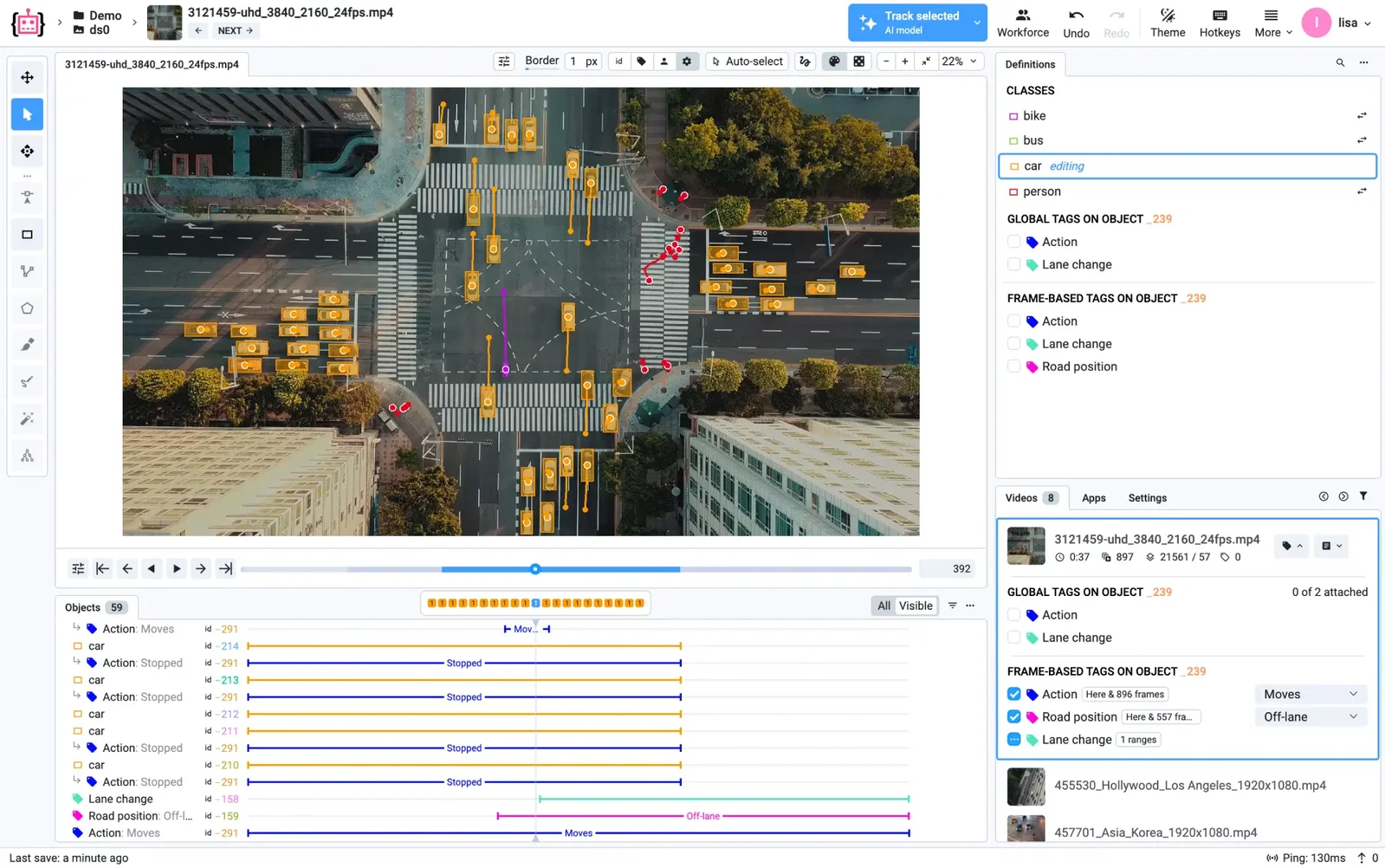
Label an object once. AI tracking follows it through the video.
Annotators draw an object on one frame and a tracker carries it forward, so the work turns from drawing every frame into checking a track and fixing the few frames where it drifts.
A tracker for every shape
Auto tracking picks a model for boxes, masks, polygons, points or keypoint skeletons, extends the track as you move forward and re-tracks after every correction. On Supervisely Cloud the trackers are already running.
Tracking by detection
New objects get their own tracks as they enter the scene, and a track ends when its object leaves the frame: what crowded streets and busy scenes need.
Whole videos pre-labeled
Run your own detector, such as a YOLO model, on every frame of a project. A BoT-SORT tracker links its detections into tracks, and people review instead of starting from an empty video.
Every camera on the scene, labeled as one scene.
Videos of one scene from different cameras open side by side and play in sync. A car labeled from the drone is the same car from the street, so cross-camera datasets come out consistent without matching anything by hand.
Aligned, even when cameras started apart
Frame offsets line the cameras up, and tracking follows an object in each view.
Tags per camera
Mark an object as occluded on one camera and visible on another; tags stay with the video they were set on.
The rig survives export
Exports keep the shared objects and the order of the cameras.
Find the moment by where it happened and how the vehicle moved.
For footage from a moving camera, the GPS route sits on a map and speed, acceleration and altitude are charted beside the video, all in sync. Click a place on the route or a dip in speed, and the video jumps to that moment.
Read from the camera itself
The GPS track and motion data embedded in GoPro recordings (GPMF) and in videos with CAMM metadata appear on their own, with nothing to convert or upload separately.
Rare events, found in seconds
Hard stops, sharp turns or a damaged stretch of road show up on the map and charts, so annotators go straight to the frames worth labeling.
Labeled where it is found
Tag and label the moment without leaving the toolbox, while the route and the charts follow the playback.
Smooth 4K playback, with sound.
4K footage plays in real time, forward or in reverse, and fast-forward shows many more frames, so reviewers skim long recordings and still see what happened.
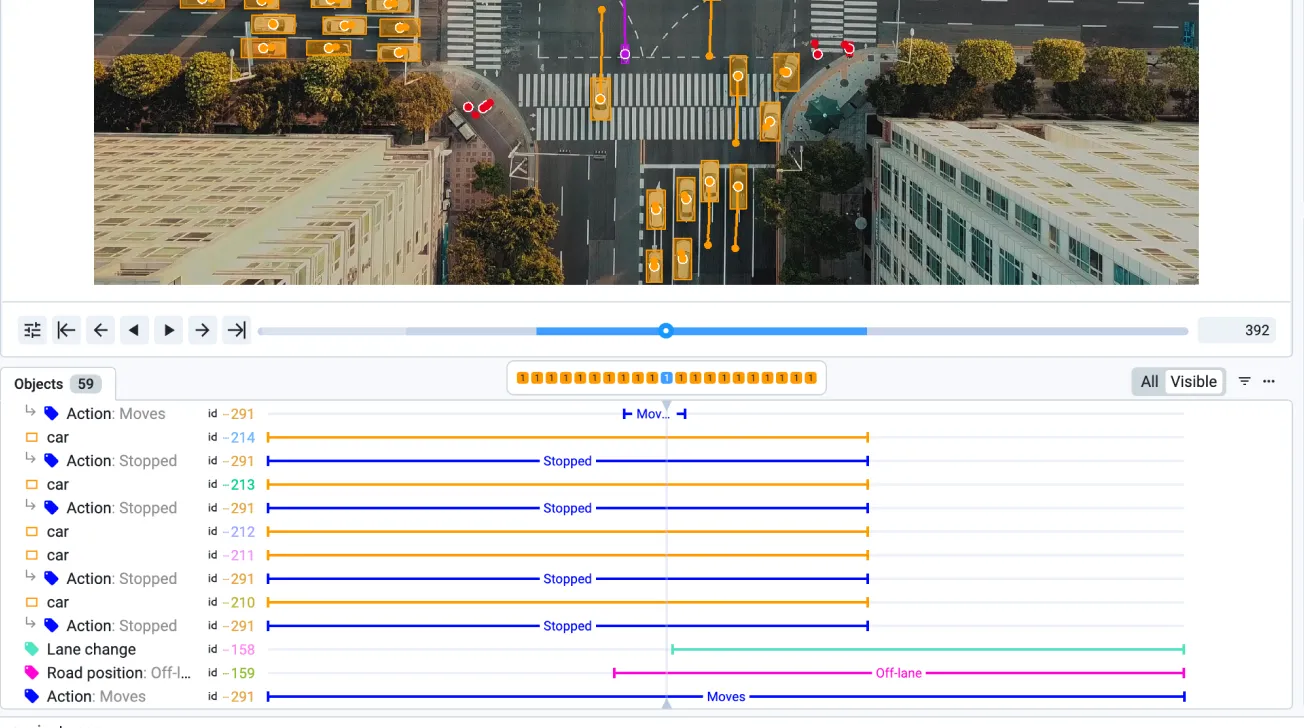
4K in real time
High-resolution video plays smoothly, and stepping through it frame by frame stays fast on long recordings.
Sound with the picture
Videos play with their audio, for events that are easier to hear than to see.
Objects and events on one timeline
Each object and each tag gets a row under the player, and frame-range tags mark an event, such as a lane change, from its first frame to its last.
Catch a bad track before it reaches a model.
Tracking saves the most time when its mistakes are easy to see. Trajectories, consensus and per-person numbers show reviewers where to look.
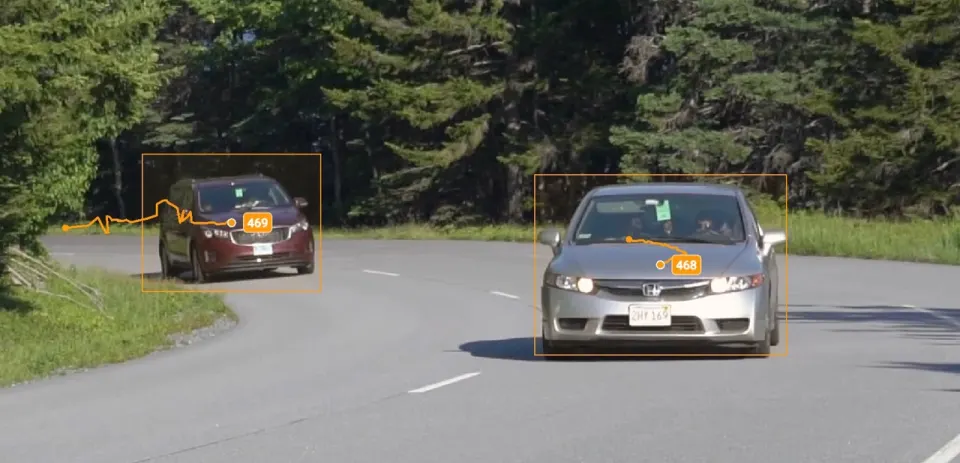
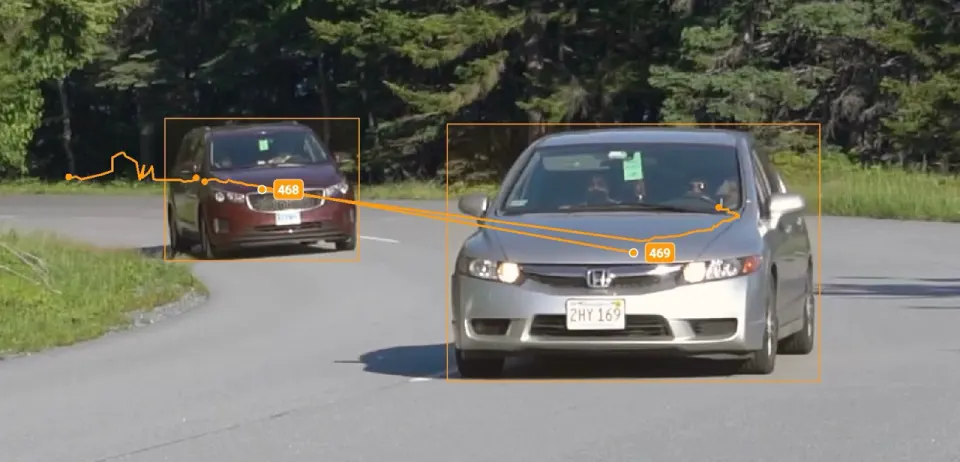
Trajectories
Draw the path of every object across frames. With a static camera, a track that jumps from one car to another stands out at once.
Video consensus
2 to 4 annotators label the same video independently. Their objects, frame ranges and tags are matched and scored, and a reviewer settles each difference.
Labeling performance
Output, speed and acceptance for every annotator, with a filter for video projects.
Frequently asked questions.
Label your first videos on the free Community plan, or talk to the team about your project.
How does AI object tracking work in the video annotation tool?
Label an object on one frame and start tracking: auto tracking follows it forward or backward with a model suited to its shape, extends the track as you move through the video and re-tracks after every correction. Tracking by detection also starts tracks for new objects as they enter the scene. Read about auto tracking in the docs.
Can I segment objects in a video and track their masks?
Yes. Draw masks with the brush, the mask pen or the Smart Tool, and auto tracking follows them with a segmentation model such as Segment Anything. The AI-assisted labeling page covers the models.
Can I label videos from several cameras at once?
Yes. In a multi-view project, the videos of one scene form a synchronized group: they play together, an object seen by several cameras stays one object, and frame offsets align cameras that started at different times. See multi-view videos in the docs.
Can I see the GPS route and speed of a video while labeling?
Yes. For GoPro recordings and videos with CAMM metadata, the toolbox reads the GPS and motion data from the file and shows the route on a map and speed, acceleration and altitude charts, in sync with the video. Click the route or a chart to jump to that moment. See Video + GPS Telemetry in the docs.
Which video formats does Supervisely support?
Supervisely imports .mp4, .mov, .avi, .mkv, .webm, .wmv, .flv and .3gp files, up to 64 GB per upload by default, with no fixed limit on length or resolution; 4K plays in real time. MP4 with H.264, VP8 or VP9 streams to the browser as it is, and other formats are transcoded on the fly. See video import formats.