Scalable Polygon Annotation: Clean, Aligned Boundaries for Geospatial Data

Annotate buildings, parcels and land cover with polygons in Supervisely: start from AI masks, align boundaries between objects, cut holes and fix local errors.
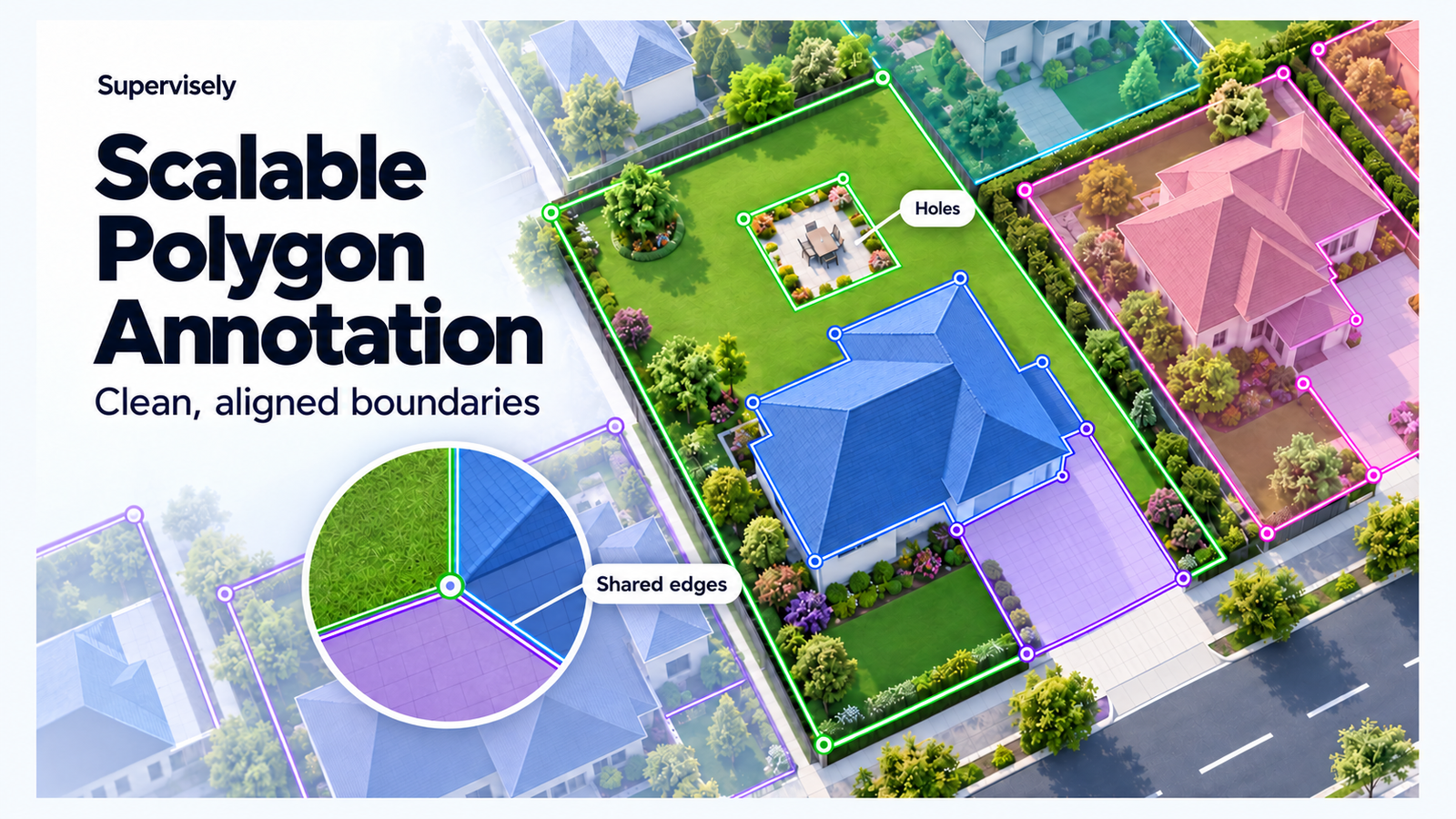
Table of Contents
Take an aerial image of a single property: a house, a lawn around it, a paved driveway and a few planting beds. These are separate map objects, but they touch. Where the lawn meets the driveway, the two contours should follow the same line, without gaps, overlaps or pixel-level jaggedness.
Masks are fast to produce and are often all a project needs. When the deliverable is vector geometry, with straight sides, clean corners, holes and boundaries aligned between neighboring objects, polygons are the better final format. This tutorial walks through that property example in Supervisely: getting a first pass from AI, deciding when to switch to polygons, drawing objects with aligned boundaries, cutting holes and correcting mistakes locally. It ends with what it takes to run the same workflow on thousands of images and export the result with map coordinates.
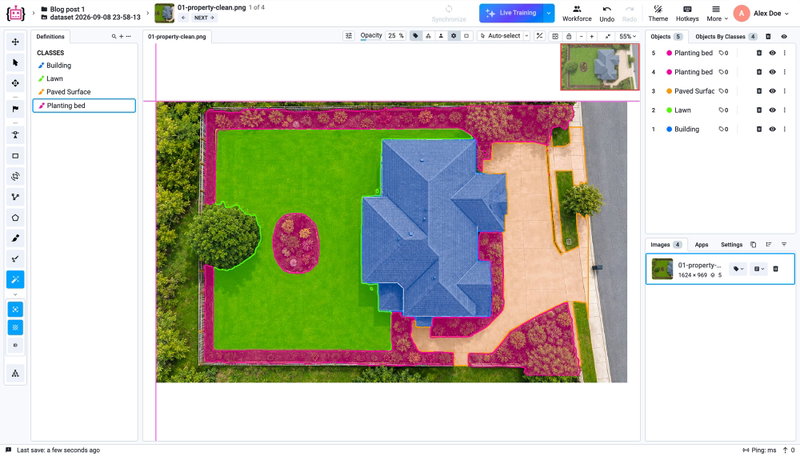 Segment Anything masks for a building, lawn, paved surface and planting beds on an aerial image of a property
Prefer the full reference? Scalable Polygon Annotation in the Supervisely docs covers masks versus polygons, overlaps, self-intersections, holes, georeferenced export and large-project workflows.
What you need
-
An images project with aerial or satellite imagery. The example uses four classes:
Building,Lawn,Paved surfaceandPlanting bed. -
For each class, decide what the output should be. If raster masks are the deliverable, use mask classes. If you need editable vector outlines, create the classes with the Polygon shape.
-
If you plan to export to map coordinates, prepare the imagery with the Satellite, DTM & OSM Downloader app. It keeps each image's coordinate reference system, geographic extent and pixel-to-map transform.
Step 1: Get a first pass with AI
Smart Tool with Segment Anything produces candidate masks from a few positive and negative points. In the image above, it quickly outlines the building, lawn, paved surface and planting beds, and the annotator assigns the classes.
The model proposes regions; it does not know how the site is organized. The lawn continues beneath the tree canopy, and the private driveway looks connected to the public sidewalk. Decisions like these stay with the annotator.
When the points are not enough, the Brush Tool adds a missing area or removes an unwanted one. The result is still a mask, so its edge still follows the pixel grid.
If masks are your deliverable, you can stop here.
Step 2: Decide when to switch to polygons
Supervisely can convert a mask into a polygon whose vertices you can then edit. This works well for irregular objects, or when the mask already follows the required boundary closely.
For objects with straight sides, such as roofs, driveways and parcels, converting the mask may produce far more vertices than needed. Smoothing uneven edges and deleting extra points on one object is quick; doing it on thousands of objects adds up in both labeling and review. For rectilinear objects, drawing the polygon directly with the Polygon Tool is often the shorter path to approved geometry: click the corners and press Space to close the shape.
Step 3: Draw the next object along an existing boundary
With the building drawn, the lawn and the driveway have to meet it exactly. Drawing each polygon independently means placing the same points twice and then hunting for slivers and overlaps.
Automatic object linking in the Polygon Tool follows the existing contour instead. While drawing the lawn, move the pointer over the building and click the nearest point on its outline, then click a later point along the same outline. The new polygon follows the building's edge between the two points, and their boundaries follow the same line.
Linked boundaries stay linked when you edit them. Drag a vertex shared by two or three polygons, and all of their contours update together. There is no need to fix one object and then pull its neighbors back into place.
Step 4: Cut holes instead of splitting objects
A planting bed in the middle of the lawn should not be part of the lawn, but cutting it out should not split the lawn into several objects either. Select the lawn, hold Shift and click to outline a hole. The lawn stays one object, and the hole keeps its own editable boundary. To remove a hole, hover over it and press Delete.
Not every overlap needs a hole. A building sits inside its property parcel, and both should stay independent objects with their own classes. A lawn and a driveway, on the other hand, should only touch. Write down in your annotation guidelines which relationship each pair of classes has: overlap, shared boundary or hole. Reviewers can then check against it.
Step 5: Fix local errors without redrawing
A polygon whose boundary crosses itself, usually after points were placed in the wrong order, has an ambiguous inside. GIS tools may reject it as invalid.
You do not have to redraw the object to fix it. Drag, add or remove vertices (Shift + click removes a point), or replace a whole section of the outline: click a point on the polygon, draw the new section, and finish on another point of the same polygon. Only that section changes. This is especially useful when reviewing polygons predicted by a model or imported from another tool.
If a downstream GIS system has specific topology rules, include them in the guidelines and validate the exported geometry before delivery.
Step 6: Scale it to a whole project
Each of the editing actions above saves a little work per object. At geospatial scale that matters: Microsoft Global ML Building Footprints contains about 1.4 billion building outlines, and SpaceNet more than 11 million. Small per-object costs, such as redrawing a shared edge or a whole contour because of one local mistake, add up fast in projects like these.
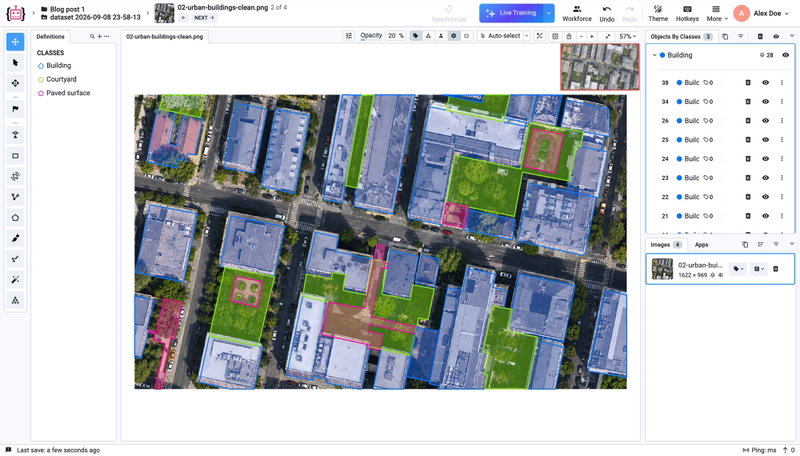 Buildings, courtyards and paved surfaces stored as separate polygons on a high-resolution urban image
The first outline can come from an annotator or from a model. If you already have a model that predicts building footprints, Supervisely supports custom model integration, and the Polygon Tool gives reviewers the controls to turn predictions into approved geometry.
For the people side of the project:
-
Labeling Jobs and Labeling Queues distribute images among annotators.
-
Labeling Quality Control sends work to review and back for rework.
-
Labeling Performance reports active labeling time, average time per object, asset acceptance rate and review time.
Step 7: Export with map coordinates
Polygon vertices in a Supervisely annotation are stored in image coordinates. When the imagery was prepared with the Satellite, DTM & OSM Downloader, Export to OSM Format uses each image's georeferencing to reproject the polygons to longitude and latitude and writes OSM XML files.
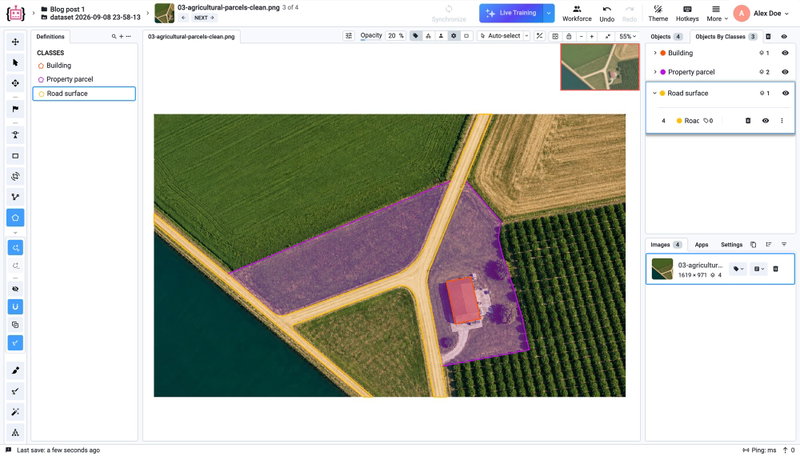 A property parcel, road surface and building annotated as separate polygons on an agricultural aerial image
Reprojection does not make a boundary more accurate than its source. The result depends on the imagery, its georeferencing and the annotation itself, and it is not survey-grade. Property parcels drawn from aerial imagery are a useful starting point, but a legal boundary has to be checked against cadastral records and survey plans. Before uploading anything to OpenStreetMap, review the class-to-tag mapping and the source data's license, and follow the OpenStreetMap import guidelines.
Summary
-
Masks provide a fast first pass and the right output when raster data is the deliverable.
-
Polygons give editable vector geometry with straight sides, clean corners, holes and aligned boundaries.
-
Automatic object linking, shared vertices and local contour replacement reduce repetitive correction work between neighboring objects.
-
Imagery with supported geospatial metadata lets you export polygons as OSM XML in map coordinates.
-
Jobs, queues, quality control and performance reports keep annotation and review in one workflow.
Try Supervisely on your own imagery, or contact us to discuss a large geospatial project. The full guide in the docs has more on overlaps, topology and export.
Supervisely for Computer Vision
Supervisely is online and on-premise platform that helps researchers and companies to build computer vision solutions. We cover the entire development pipeline: from data labeling of images, videos and 3D to model training.
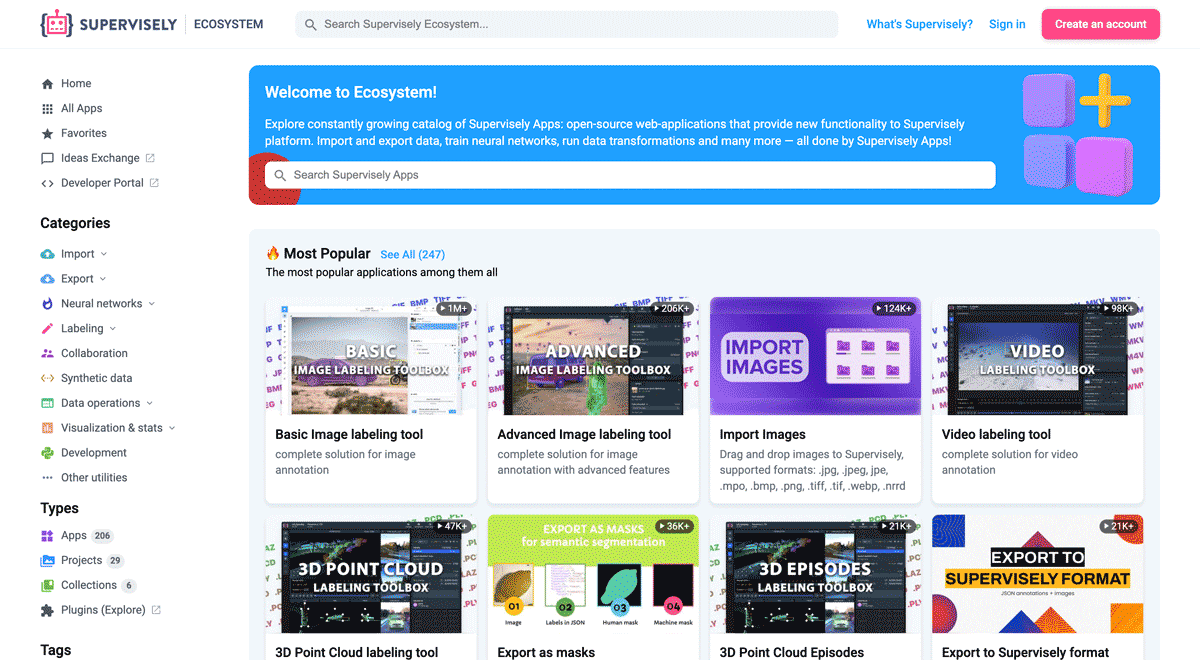
The big difference from other products is that Supervisely is built like an OS with countless Supervisely Apps — interactive web-tools running in your browser, yet powered by Python. This allows to integrate all those awesome open-source machine learning tools and neural networks, enhance them with user interface and let everyone run them with a single click.
You can order a demo or try it yourself for free on our Community Edition — no credit card needed!
Liked this blog post? Share it!




Subscribe to new blog posts
Table of Contents
🤖 Try Supervisely: it's free!
Full stack platform with hundreds of Apps ready to solve any computer vision task: from labeling to model training. Create account
 ★★★★★ Rated 4.7 of 5


